Photoshop tips, tricks & tutorials for the rest of us

By Dave Barker

Subscribe for Free Tips

Latest Articles

Photoshop Monkey

Understanding Blend Modes: A Visual Guide

Blend modes are one of those features where people either know them cold or just randomly click through the dropdown hoping something looks good. Let’s fix that. Photoshop’s blend modes control how a layer interacts with layers below it. There are 27 of them, but they fall into logical groups, and once you understand the groups, the individual modes make sense. Group 1: Normal Normal — No blending. The top layer covers the bottom layer completely (at 100% opacity).

Photoshop Monkey

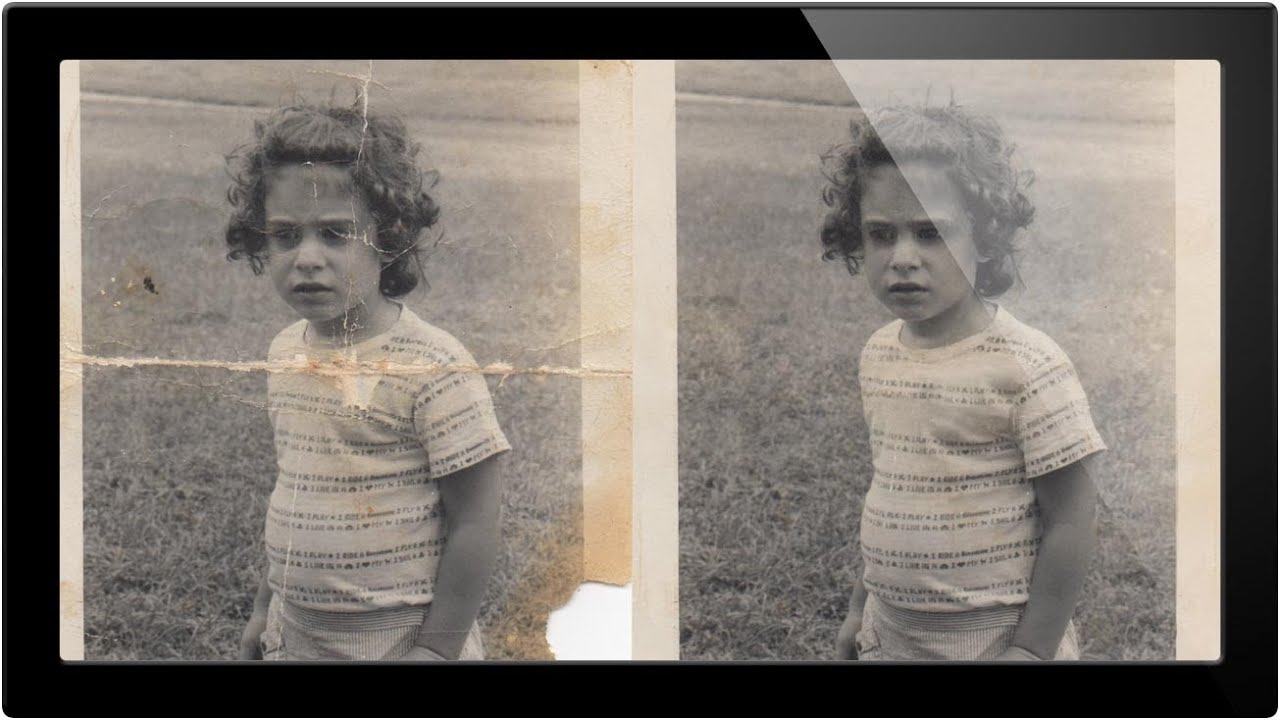
Healing Brush vs Clone Stamp: A Practical Comparison

The Healing Brush and Clone Stamp look similar and do similar things, but they use fundamentally different algorithms. Using the wrong one creates problems that are often worse than the original blemish. Here’s when to reach for each one. How They Differ Clone Stamp copies pixels exactly from the source point to the destination. What you sample is what you get — texture, color, brightness, everything. Healing Brush copies texture from the source but matches the color and brightness to the destination.

Photoshop Monkey

Sky Replacement: Does the AI Actually Work?

When Adobe added Sky Replacement to Photoshop, reactions ranged from “this changes everything” to “this is the end of honest photography.” Having used it extensively over two years, my take is more boring: it’s a useful tool that works well about 70% of the time. Let’s look at what it actually does and where it breaks. How It Works Edit > Sky Replacement opens a panel where you select from preset skies or load your own.

Photoshop Monkey

Smart Objects: Why You Should Use Them for Everything

I used to ignore Smart Objects. They seemed like an extra step that slowed things down. Then I spent an hour trying to undo a resize that had destroyed my image quality, and I became a convert overnight. What Is a Smart Object? A Smart Object is a container that wraps your layer data and preserves the original content. When you transform, filter, or resize a Smart Object, Photoshop works from the original data every time — not from a degraded copy.

Photoshop Monkey

Creating Text Effects That Don't Look Like Clip Art

Photoshop’s Layer Styles panel is where good text goes to die. Bevel and Emboss, Outer Glow, Stroke — in the wrong hands, these tools produce text that looks like it belongs on a GeoCities page from 1998. But the tools themselves aren’t the problem. It’s how they’re used. Here’s how to create text effects that look professional. The Golden Rule: Restraint If you’re applying more than two layer styles to a single piece of text, you’re probably overdoing it.

Photoshop Monkey

The Quick Selection Tool vs Magic Wand: When to Use Which

The Quick Selection Tool and the Magic Wand sit in the same tool slot in Photoshop, but they work in fundamentally different ways. Choosing the right one for the job saves you from fighting with selections that never quite look right. How They Work Magic Wand selects pixels based on color similarity. You click a pixel, and it selects all connected pixels within a tolerance range of that color. It’s a purely mathematical tool — it doesn’t “understand” what’s in the image.

Photoshop Monkey

How to Sharpen Photos for Web vs Print

Here’s a mistake I see constantly: photographers apply one round of sharpening and export for both web and print. The result? Images that look crunchy on screen and soft in print. Web and print have different requirements, and your sharpening needs to account for that. Why They’re Different A computer monitor displays images at roughly 72-150 PPI, and every pixel is visible. What you see is what you get. Any over-sharpening shows up immediately as halos and artifacts.

Photoshop Monkey

How to Remove Any Object from a Photo in 60 Seconds

There’s a trash can in your otherwise perfect landscape shot. A tourist walked into your architectural photo. A power line cuts across your sunset. We’ve all been there. The good news: Photoshop has gotten absurdly good at removing stuff. Here’s how to do it fast, and what to do when the quick methods fall short. Method 1: The Remove Tool (Fastest) Photoshop’s Remove Tool (shortcut: J, then cycle through) is powered by AI and it’s borderline magic for simple removals.

Photoshop Monkey

Creating Seamless Panoramas in Photoshop

Photoshop’s panorama stitching has gotten remarkably good over the years, but it still requires some understanding of what it’s doing — and what can go wrong — to get consistently great results. Shooting for the Stitch The quality of your panorama is mostly determined before you open Photoshop. Overlap by 30-40%. Each frame should share about a third of its content with the next frame. Less overlap gives the stitching algorithm less data to work with, resulting in visible seams or failed merges.

Photoshop Monkey

Setting Up Photoshop for Maximum Performance

If Photoshop feels sluggish, the problem usually isn’t your computer — it’s how Photoshop is configured. The default settings are conservative, designed to work on low-end hardware. If you have a decent machine, you’re leaving performance on the table. Here’s how to configure Photoshop for speed. Memory (RAM) Allocation Go to Edit > Preferences > Performance (Photoshop > Settings > Performance on Mac). The “Memory Usage” slider controls how much RAM Photoshop can use.

Photoshop Monkey

25 Photoshop Shortcuts Every Photographer Should Know

I timed myself once. I spent eleven minutes on a single portrait retouch just navigating menus. Eleven minutes of clicking File, Edit, Filter — over and over. That was the day I committed to learning shortcuts, and I haven’t looked back. Here are 25 shortcuts that actually matter for photographers. Not the obscure ones nobody uses — the ones that’ll save you real time every single session. The Essentials (You Probably Know These) Ctrl/Cmd + Z — Undo.

Photoshop Monkey

How to Create Double Exposure Effects

The double exposure effect — two images blended into one — originated as a film camera technique where the same frame was exposed twice. In Photoshop, we can achieve the same look with far more control over the result. Here’s how to create a convincing double exposure from scratch. Choosing Your Images The image pairing makes or breaks this effect. You need: Image A (the base): Usually a portrait or silhouette with strong shape definition.

Never Miss a Tutorial

Join our newsletter and get weekly tips, tutorials, and exclusive content.

Subscribe Now