Photoshop Filters Are Not Magic Buttons (But They Kind of Are If You Use Them Right)

Photoshop Filters Are Not Magic Buttons (But They Kind of Are If You Use Them Right)

My dog Pixel is a 40-pound chaos agent who has, on more than one occasion, walked across my keyboard mid-project. One afternoon she stepped on something during a portrait retouch and suddenly the whole image had this soft, diffused glow I hadn’t seen before. I looked down. She’d triggered Filter > Blur > Gaussian Blur, set to around 4.5 pixels, blended at 60% opacity through a luminosity blend mode I’d accidentally left active.

Adobe's AI Noise Reduction is Here and It's Kind of a Big Deal

Adobe's AI Noise Reduction is Here and It's Kind of a Big Deal

I shoot a lot of work late in coffee shops. Bad lighting, available light, high ISO, the whole disaster. So noise has always been my nemesis, sitting there in my shadows like an uninvited guest who refuses to leave. For years I dealt with it through a mix of manual sliders in Lightroom and a third-party plugin that worked well but added time to every job. Then Adobe dropped their AI-powered Denoise feature in Lightroom Classic and Adobe Camera Raw, and suddenly a lot of photographers started asking whether the plugin era is over.

Build a Photoshop Photo Book Template That Actually Saves You Time (Scott Kelby Method)

Build a Photoshop Photo Book Template That Actually Saves You Time (Scott Kelby Method)

Client photo books used to wreck my workflow. Not the creative part, I enjoy that. The part where you build twelve nearly-identical pages and have to manually swap out every image, resize it, reposition it, and pray nothing shifts. I burned more hours than I’ll admit before I stumbled across a smarter approach. In this Scott Kelby tutorial from his three-part photo book series, Kelby walks through building photo book pages directly in Photoshop CS4.

The Hidden Photoshop Filter That Cleans Dirty Studio Backdrops in About 30 Seconds

The Hidden Photoshop Filter That Cleans Dirty Studio Backdrops in About 30 Seconds

If you shoot portraits on seamless paper, you already know the betrayal. The backdrop looks pristine when you hang it. By the end of a two-hour shoot, it looks like a crime scene. Footprints, scuff marks, mysterious dark smears, wrinkles that catch light in the worst way possible. I’ve spent genuinely embarrassing amounts of time trying to patch and clone-stamp my way through dirty backgrounds, session by session, thinking that was just the cost of doing business.

Finally! Adobe Camera Raw Shows You Exactly Where Your Camera Focused

Finally! Adobe Camera Raw Shows You Exactly Where Your Camera Focused

Stop Blaming Your Camera (Or Start, Confidently) You know that moment? You’re editing a batch of photos, stumble across a blurry shot, and immediately think, “My camera’s autofocus is broken!” Before you rage-tweet at Canon or Nikon, Adobe just gave you a way to actually prove it—or eat humble pie. The latest version of Adobe Camera Raw (18.4.1) quietly dropped a feature I’ve been waiting for since roughly the invention of autofocus itself: the ability to see exactly where your camera focused.

Changing Eye Color in Photoshop Without Making It Look Ridiculous

Changing Eye Color in Photoshop Without Making It Look Ridiculous

Client retouching jobs have a funny way of surfacing requests you’ve never actually practiced. Someone hands you a portrait and casually mentions, “Oh, can you also make the eyes green?” and suddenly you’re Googling at 11pm from a corner booth at your local coffee shop hoping nobody notices you’re sweating over something that’s supposed to be simple. Eye color changes sound trivial until you try one and end up with something that looks like a Halloween costume filter.

Rescuing a Wrecked Brochure Photo in Photoshop: A Real-World Walkthrough

Rescuing a Wrecked Brochure Photo in Photoshop: A Real-World Walkthrough

Client sends you a photo taken on an iPhone, under bad lighting, of a bent, faded, color-cast piece of paper. No raw file. No scanner. Just that. If you’ve been doing design or photo work for any length of time, you’ve been here. I’ve been here more times than I’d like to admit, usually sitting in a coffee shop trying to work miracles on someone’s terrible source material before a deadline hits.

AI Snow Masking in Photoshop and Lightroom Just Changed How I Edit Winter Shots

AI Snow Masking in Photoshop and Lightroom Just Changed How I Edit Winter Shots

Winter landscape photos have always been a mild headache for me. Snow blows out highlights, the sky goes flat, and the trees end up looking like sad gray sticks. I’d usually spend way too long painting manual masks just to bring some texture back into the snow without torching everything else in the frame. Not anymore. Adobe just dropped an update to their AI Landscape masking tool, and it now detects snow as its own separate, editable region.

Adobe's Experimental Camera App Is About to Change How You Shoot (And Edit)

Adobe's Experimental Camera App Is About to Change How You Shoot (And Edit)

The Camera App That Thinks Like Photoshop I’ve been watching Adobe quietly build something interesting in their labs, and I think we’re about to see a real shift in how photographers approach image capture. Project Indigo—their experimental camera application—is rolling out with enough AI smarts to make even desktop Photoshop users sit up and pay attention. Here’s the thing: we’ve all been conditioned to think of photo cleanup as a post-production task.

Generative Credits in Photoshop & Lightroom: What Costs You and What Doesn't

Generative Credits in Photoshop & Lightroom: What Costs You and What Doesn't

Here’s a situation I’ve been in more than once: I’m halfway through a client job, I’ve been leaning on Photoshop’s AI tools like they’re going out of style, and then I get that little notification that my generative credits are running low. Cue mild panic, a lot of Googling, and the realization that I had absolutely no idea which tools were burning through credits and which ones were free. Turns out, I’d been playing the game without reading the rules.

Create, Size & Share Desktop Wallpapers in Photoshop (The Right Way)

Create, Size & Share Desktop Wallpapers in Photoshop (The Right Way)

If you’ve ever finished a photo composite or a piece of digital art and thought “this would make a sick desktop wallpaper” — and then had absolutely no idea what to do next — you’re not alone. I’ve been there. I’ve exported things at the wrong resolution, uploaded files that looked great on my monitor and blurry on everything else, and once spent an embarrassing amount of time trying to figure out where to even host the thing so other people could grab it.

Joel Grimes' Dramatic Black & White Portrait Technique (And Why I Wish I'd Known This Sooner)

Joel Grimes' Dramatic Black & White Portrait Technique (And Why I Wish I'd Known This Sooner)

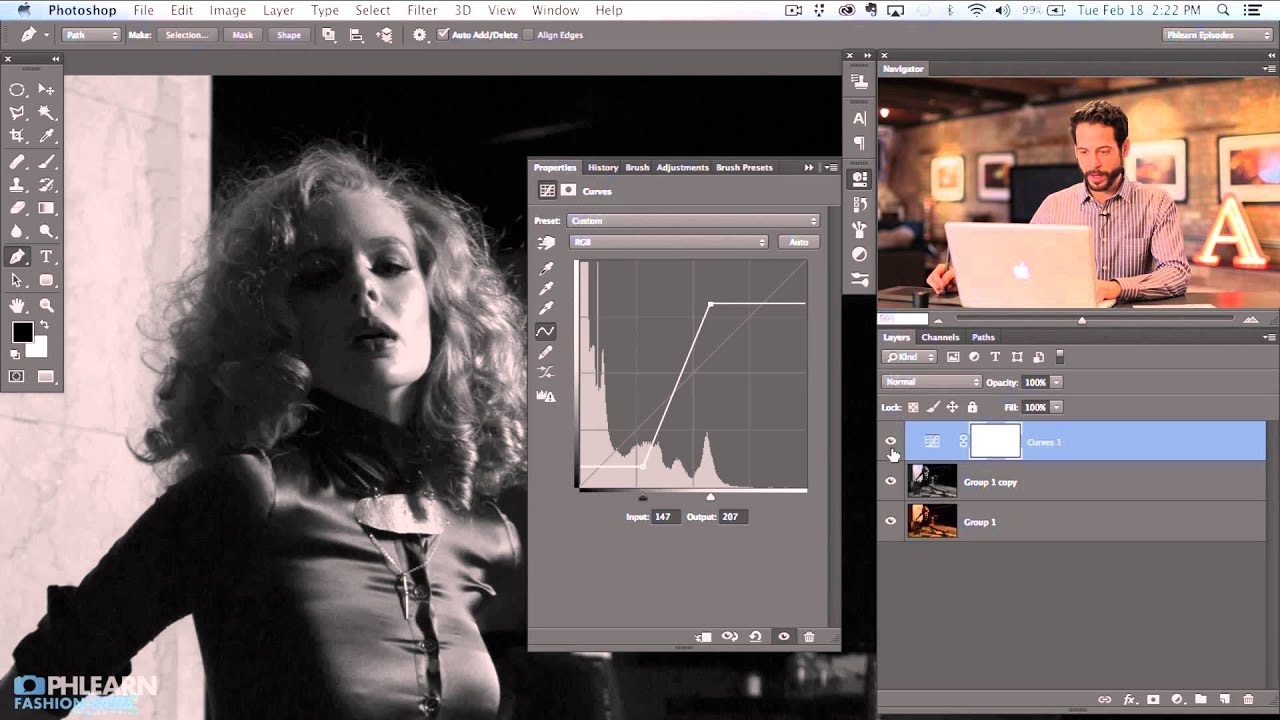
There’s a specific kind of frustration that comes from knowing your black and white portrait should look cinematic and instead looks like a desaturated snapshot from a 2009 Facebook album. I’ve been there more times than I’d like to admit. The problem usually isn’t the photo itself. It’s the conversion process. Most people hit Image > Desaturate, squint at the result, and then wonder why it looks flat. The answer is that dramatic B&W isn’t a one-step thing.